Thursday, September 10, 2009

Delete background jobs older than 30 days

As default SAP delete background jobs that is older than 10 days. You'll find the standard jobs in SM36 - Standard Jobs.
You will see that the job SAP_REORG_JOBS delete old jobs. This job uses program RSBTCDEL with variant SAP&001. You are not able to change this variant. Even if your user have SAP_ALL- and SAP_NEW-authorization.
You have to make a new variant if you want to delete jobs that is older than 30 days.

This is how you can solve this issue after scheduling the standard job:

1. Go to SE38 and enter program RSBTCDEL
2. Select "Variants" and choose "Change"
3. In the "Variant"-field you have to select "SAP&001"
4. Then choose "Variants" in the menu top left corner and then "Copy". Copy the variant into a new name that you desire:)


5. Make the value-change for the new variant. "Older than days" = 30. Save and close.
6. In the end you have to change the released job SAP_REORG_JOBS. You can do this in SM37. Remember to set the job from released to scheduled before changing.

I guess it's more than one way to solve this issue. Maybe someone knows how to change the original variant?

Wednesday, September 9, 2009

R3TRFORMZZMEDRUCK original object cannot be replaced

Import of transport request ended with error.

Log file will tell you that original object cannot be replaced.
SAP will also provide you with a procedure to solve this:
If you still want to import the object, repeat the import with Unconditional Mode 2.

"Unconditional modes" is that you can override the rules of the transport system.
Import your request with option "Overwrite originals" is one of the unconditional modes.

Friday, September 4, 2009

HW-certification for SAP - Windows

Here is a usefull link if you are going to bay new hardware for your sap-application:
http://www.saponwin.com/


VMware:
Up until recently, to run SAP on VMware ESX on a given server, the server vendor had to do an additional certification specifically for VMware ESX. These certifications were published as SAP Benchmarks on http://www.sap.com/benchmark. In January, SAP agreed to remove this additional certification. This change was announced in the Benchmark Council in February. From now on, any server is supported that is
a.) on the VMware Hardware Compatibility List (http://www.vmware.com/resources/guides.html) AND !
b.) on the SAP certified hardware list, maintained at http://www.saponwin.com/

This info is taken from:

Installing SAProuter with SNC connection on Windows

Here is my guide to install SAProuter with SNC for connection to SAP.
Hopefully you'll find it helpful.

Secure Network Communications:

Figure is taken from service marketplace and the saprouter-guide.

1. Register SAProuter at service marketplace. Send an oss-message with component XX-SER-NET-NEW to SAP. You have to attach "Remote Connection Data Sheet" to this oss-message (note 28976).
2. Download SAPSECULIB and SAPCRYPTO from service marketplace.
You'll find SAPSECULIB under Download - SAP support Packages - Entry by application group - SAP Technology Components.
You'll find SAPCRYPTO here:
https://websmp203.sap-ag.de/~form/handler?_APP=00200682500000000917&_EVENT=I_AGREE&_SWFOLDER=
3. Download SAPROUTER from service marketplace.
You'll find it under Download - SAP support Packages - Entry by application group - SAP Technology Components.
In my case I had to download version 7.00 because I could not find 7.10 for 32-bit Windows.
4. Create directory "saprouter" at your saprouter-host. In this example I created \usr\sap\saprouter.
5. Uncar your saprouter-file and copy saprouter.exe and niping.exe into your saprouter-folder (\usr\sap\saprouter).
6. Check if you can find ntscmgr.exe in the windows\system32-folder. If it's not there - find it and copy.
7. Create saprouter as an service.
Example: ntscmgr install SAProuter -b E:\usr\sap\saprouter\saprouter.exe -p "service -r -R E:\usr\sap\saprouter\saprouttab -S 3299"
8. Set saprouter-service to "Automatic" and user "adm".
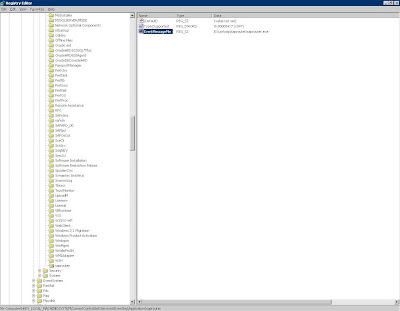
9. Create key "saprouter" under
HKEY_LOCAL_MACHINE → SYSTEM → CurrentControlSet → Services → Event Log → Application
Then this values:
EventMessageFile (REG_SZ): ....\saprouter\saprouter.exe
TypesSupported (REG_DWORD): 0x7
10. Check if you can find MSVCR71.DLL and MSVCP71.dll in your system32-folder.
11. Download MS Runtime DLL attached to note 684106 (r3dllinst.zip). Unzip and run R3DLLINS.EXE from \NTPATCH - restart if necessary.
12. Uncar SECULIB and copy files from nt-i386 (if 32-bit windows) into \usr\sap\saprouter folder.
Uncar SAPCRYPTOLIB and copy files from \ntintel into \usr\sap\saprouter. You also have to copy files directly from the uncared SAPCRYPTOLIB-folder (files as ticket) into \usr\sap\saprouter.
13. Create environment variables for user:
SECUDIR = E:\usr\sap\saprouter
PATH = E:\usr\sap\saprouter
SNC_LIB = E:\sap\saprouter\sapcrypto.dll
14. Go to service marketplace:
https://websmp201.sap-ag.de/SAPROUTER-SNCADD
Press Apply Now!
You'll receive some data. Save it and copy the Distinguished Name.
Press Continue.
15. Open dos-command at your saprouter-host and type:
sapgenpse get_pse -v -r certreq -p local.pse ""
Just press "Enter" twice if you have to enter PIN.
16. Files local.pse and certreq is now created in saprouter-folder.
Open file certreq in notepad and copy the content.
17. Go back to service marketplace (window from nr. 14) and paste the content from certreq there. Press Request Certificate.
You will then receive your certificate.
18. Copy your certificate into notepad at your saprouter-host. Save this notepad-file as srcert in your saprouter-folder.
19. Open dos-command and import the certificate:
sapgenpse import_own_cert -c srcert -p local.pse
20. Create credentials. Open dos-command and type:
sapgenpse seclogin -p local.pse
21. Verify the import of the certificate. Open dos-command and type:
sapgenpse get_my_name -v -n Issuer
Everything should be ok.
22. Create a file called saprouttab in your saprouter-folder and enter thise entries:
KT "p:CN=sapserv2, OU=SAProuter, O=SAP, C=DE" 194.39.131.34 *
KP "p:CN=sapserv2, OU=SAProuter, O=SAP, C=DE" *
P 194.39.131.34 3299
23. Go into registry at your saprouter-host.
HKEY_LOCAL_MACHINE - SYSTEM - ControlSet001 - Services - SAProuter
Modify string ImagePath.
It should look like this:
E:\usr\sap\saprouter\saprouter.exe service -r -R E:\usr\sap\saprouter\saprouttab -S 3299 -K "p:"
24. Start saprouter-service
25. Open port 3299, 3200 between SAP and your saprouter.
26. Create RFC in SM59. If you need some help with this let me know.

Upgrade and migrate ContentServer with MAXDB - v2

It seems that I have been worrying too much.


Created a snapshot of my ContentServer and successfully upgraded to maxdb 7.7.00.28.

I had no experience with CS or MAXDB, but with Database Manager it's pretty easy to handle:)

Monday, August 24, 2009

Upgrade and migrate ContentServer with MAXDB

I have tried to figure out how to solve this issue, but I find it hard.
The problem is that we do not have any dev- or qa-system to practice on.

I had to migrate the system anyway because of the hardware. I moved it to a vmware-client to by me some time . It's easier to do a roll back on vmware.
Now I want to migrate it to a new server (not vmware).

Source System:
SAPDB 7.3.0.35 - 32bit windows
Target System:
MAXDB 7.7 - 64bit windows

Note 962019 is very important!
Here is some prerequisites with my answers:
- In your source system, you use SAPDB Kernel Version 7.3.00 Build 57 (PTS 1143300) or higher, or MaxDB Kernel Version 7.5.00 Build 40 (PTS 1143301) or 7.6.00 Build 31 or higher.
My answer: NO, I use 7.3.0.35
-If the minimum required version 7.3.00 Build 57 is not yet available on the SAP Service Marketplace, you must first upgrade the Content Server Version 7.3. to Version 7.5.00 Build 40 before you can execute a heterogeneous system copy.
My answer: 7.3.00 Build 57 is NOT available and have never been. The same for version 7.5.00 Build 40.

So what can I do?
In point 4 (note 962019) it says:
- In your source system, you use SAPDB Kernel Version 7.3.00 Build 57 (PTS 1143300) or higher, or MaxDB Kernel Version 7.5.00 Build 40 (PTS 1143301) or 7.6.00 Build 31 or higher.

The conclusion is that I have to upgrade my source system to 7.6.00 Build 31 or higher....

Now I'm going to make som pancakes for my family. Continue in a few days!

Tuesday, August 18, 2009

SQL error in the database when accessing a table

I received this message when I tried to logon to my ECC 6.0 system (IDES):
"SQL error in the database when accessing a table"

It's a mssql 2005 database and windows 2003 server.
Usually you have to focus on the table causes the problem, but in this scenario the db-disk was full.
Increase the db-disk or move db-files to an empty partition.
Do you need help with moving db-files please let me know.

PS! Did you know that SAP loves Formula 1?
This picture is from
http://www.flickr.com/photos/mosokul/194054577/
and shows a McLaren formula 1 car.