Thursday, October 21, 2010
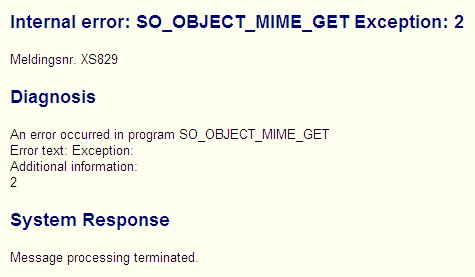
Internal error: SO_OBJECT_MIME_GET Exception: 2 when sending email
This is often very easy to fix.
1. Go to transaction SCOT
2. Settings - Default Domain
3. Enter your default domain. asfff.com
Thats it;)
Thursday, May 6, 2010
Import a Device Type
If you want some advice for this just send me an email:)
Friday, March 5, 2010
Shortdump SPOOL_INTERNAL_ERROR
What happened?The current ABAP program had to be terminated because the ABAP processor detected an internal system error. The current ABAP program "ZEDI_FTP_GET_FILE" had to be terminated because the ABAP processor discovered an invalid system state.
I had to delete old spool requests. Spool requests that was 1-2 years old. To do that you have to go to transaction SP01 and search the old request. Mark and delte.
Monday, February 1, 2010
Set office / business hours for Service Desk
The solution is to specify business hours for your organization. In the document "Configure Service Desk for VAR - SAP Solution Manager 7.0 EhP1 ST 400" you'll find out how to do this:
Friday, January 29, 2010
SAP on iPhone
But it's not SAPgui running on my iPhone. It's VPN and a free RDP.
Wednesday, January 13, 2010
Instal a new ODBC-driver
This is very easy:
1. Remember to set your database to offline before uninstalling and installing a new ODBC.
2. Execute 'sdbinst.exe' (your MaxDB-installation kit)
3. Choose 'custom'
4. Choose 'ODBC'
Thats all:)
Friday, January 8, 2010
Remove ODBC for MaxDB
Friday, December 18, 2009
SAP Content Server 6.40 and MaxDB 7.7.04.28
I talked with SAP about it. They say:
"SAP is planning to release 7.7 to all customers in Q1 / 2010"
So I decided to instal MaxDB 7.7.04.28 and do an upgrade / migration test.
The upgrade went fine, and so did the migration.
The OS is Windows Server 2003 64 bit.
After migrating I did some tests. I recomand to do all these tests when you are planning to use Content Server or if you want to be sure that the migration was a success:
1. Create a Content Repository in CSADMIN.
Information you type into CSADMIN about the Content Repository will be saved in contentserver.ini
2. Test connection to the new Content Repository from transaction oac0
3. Send certificat from the new Content Repository from transaction oac0
4. Be sure the status for the CR is running (not defined - ref earlier post)
5. Try to read from the Content Server through your ECC-system. In my case I called an invoice and viewed the image-file
6. Try to upload something to the Content Server from your ECC-system.
To do this you can use function module ARCHIVOBJECT_CREATE_FILE
Number 1-5 is working just fine, but I have problems uploading a new image-file to the Content Server.
When I do an upload-test I receive no ARCHIVE_DOC_ID. Just this error message:
"http error: 500 (Internal serverError) ;ODBC State 00000"
The ODBC is just fine so it have to be something else. SAP is working with this case. I'll update you as soon as I know anything more.
07.01.2010:
Now I know something more:)
Just remove the ODBC for MaxDB 7.7 and install ODBC-driver 7.6. This solves the problem:)
Friday, December 4, 2009
"Downgrade" MaxDB
I have a little problem.This is what I've done:
-Installed new database version 7.6 and created the db-instance
I have a complete backup from MaxDB 7.7 (Content Server) that I want to recover into MaxDB 7.6.
-Why do you have to do this? you may ask.
Answer: I did not look into PAM before upgrading my Content Server and MaxDB. Content Server 6.40 supports only MaxDB 7.6 - not 7.7. The upgrade went fine, but I get problems when migrating to new hardware/installation.
UPDATE at 14. december 2009. Message from SAP:
SAP is planning to release 7.7 to all customers in Q1 / 2010therefore there you do not have to downgrade to 7.6.
Wednesday, October 28, 2009
Screen generation - Incorrect DYNP version
"Screen generation RSSHOWRABAX 0100: Incorrect DYNP version"
1. Go to se38 and type in programname "rsgenerate"
2. Execute
3. In field "modules" you enter the name from the popup. In my case: RSSHOWRABAX
4. Leave the field "DYNPRO" empty and execute
You will receive a message like this:
Delete a SAP Client
1. Log into the client you want to delete
2. Enter transaction SCC5
3. Choose "Delete entry from T000". If you don't choose to delete entry from T000 you will have to enter transaction SCC4 from a different client and delete the entry.
Start immediate or schedule a background job.
4. Reorg database.
Thursday, September 17, 2009
Start Content Repository for Content Server
Shordump DBIF_RSQL_INVALID_REQUEST
Short text
Invalid request.
What happened?
The current ABAP/4 program terminated due to an internal error in the database interface.
What can you do?
Note which actions and input led to the error.
For further help in handling the problem, contact your SAP administrator
You can use the ABAP dump analysis transaction ST22 to view and manage termination messages, in particular for long term reference.
Error analysis
An invalid request was made to the SAP database interface in a statement in which the table "EDID4 " was accessed.
Keywords
"DBIF_RSQL_INVALID_REQUEST"
"SAPLEDI1" or "LEDI1F09"
"F09_IDOC_INSERT_WITH_NUMBER"
The Keywords did confuse me a bit. This shortdump recommend to check transaction SM21. Thats a very importen clue. Remember to check more than just the red lights in SM21.
Under a warning in SM21 I found this information:
ORA-01653: unable to extend table SAPR3.EDI40 by 46075 in tablespace PSAPCLUD
So the answer is to extend tablespace PSAPCLUD.I had over 400MB of free space in the mentioned tablespace. It was 95% full.
I did not think it was a problem related to tablespace. Anyway.... a shortdump with the header "DBIF_RSQL_INVALID_REQUEST" can be a tablespace-problem even if the keywords indicate something else.
Please send me a message if you need help to extend tablespace (harald.v@epost.no).
Picture is from: http://img.pte.at/lowrespics/1096894834i23327.jpg
I love sap-commercial ;)
Monday, September 14, 2009
Shordump START_CALL_SICK - CPU timers not synchronized
Short text
What happened?
The current program had to be terminated because of an error when installing the R/3 System. The error occurred when initializing the R/3 System.
Remember to read whole text in this shordump beacuse you often find the answer in there:
Error analysis
The error probably occurred when installing the R/3 system. Error text of the first reported error: "CPU timers not synchronized. Check note 1036194.".
Follow what is written in this note and you will solve this issue.

You have to enter the text that have an underline in this image.
PS: This message is posted by my friend John Bjerke.
Friday, September 11, 2009
CSADMIN - Content Repository prompt you for user and password
This is because I have not activated the certificate.
Solution:
1. Go to transaction CSADMIN and choose your Content Repository
2. When you are prompt for user and password you have to enter the OS-user on host for the Content Server - hit OK.
3. Choose folder "Certificates" in Content Server Administration (CSADMIN).
4. Change into "change mode":
5. Select the line where the certificate is and choose "Activate":
The next time you enter CSADMIN you will not be prompted for user and password:)
Remember that the DB must be up and running. Try with DB manager if you still have problems.
Thursday, September 10, 2009
Delete background jobs older than 30 days
You will see that the job SAP_REORG_JOBS delete old jobs. This job uses program RSBTCDEL with variant SAP&001. You are not able to change this variant. Even if your user have SAP_ALL- and SAP_NEW-authorization.
You have to make a new variant if you want to delete jobs that is older than 30 days.
This is how you can solve this issue after scheduling the standard job:
1. Go to SE38 and enter program RSBTCDEL
2. Select "Variants" and choose "Change"
3. In the "Variant"-field you have to select "SAP&001"
4. Then choose "Variants" in the menu top left corner and then "Copy". Copy the variant into a new name that you desire:)
5. Make the value-change for the new variant. "Older than days" = 30. Save and close.
6. In the end you have to change the released job SAP_REORG_JOBS. You can do this in SM37. Remember to set the job from released to scheduled before changing.
I guess it's more than one way to solve this issue. Maybe someone knows how to change the original variant?
Wednesday, September 9, 2009
R3TRFORMZZMEDRUCK original object cannot be replaced
SAP will also provide you with a procedure to solve this:
If you still want to import the object, repeat the import with Unconditional Mode 2.
"Unconditional modes" is that you can override the rules of the transport system.
Import your request with option "Overwrite originals" is one of the unconditional modes.
Friday, September 4, 2009
HW-certification for SAP - Windows
http://www.saponwin.com/
b.) on the SAP certified hardware list, maintained at http://www.saponwin.com/
This info is taken from:
Installing SAProuter with SNC connection on Windows
Hopefully you'll find it helpful.
Secure Network Communications:
Figure is taken from service marketplace and the saprouter-guide.
1. Register SAProuter at service marketplace. Send an oss-message with component XX-SER-NET-NEW to SAP. You have to attach "Remote Connection Data Sheet" to this oss-message (note 28976).
2. Download SAPSECULIB and SAPCRYPTO from service marketplace.
You'll find SAPSECULIB under Download - SAP support Packages - Entry by application group - SAP Technology Components.
You'll find SAPCRYPTO here:
https://websmp203.sap-ag.de/~form/handler?_APP=00200682500000000917&_EVENT=I_AGREE&_SWFOLDER=
3. Download SAPROUTER from service marketplace.
You'll find it under Download - SAP support Packages - Entry by application group - SAP Technology Components.
In my case I had to download version 7.00 because I could not find 7.10 for 32-bit Windows.
4. Create directory "saprouter" at your saprouter-host. In this example I created \usr\sap\saprouter.
5. Uncar your saprouter-file and copy saprouter.exe and niping.exe into your saprouter-folder (\usr\sap\saprouter).
6. Check if you can find ntscmgr.exe in the windows\system32-folder. If it's not there - find it and copy.
7. Create saprouter as an service.
Example: ntscmgr install SAProuter -b E:\usr\sap\saprouter\saprouter.exe -p "service -r -R E:\usr\sap\saprouter\saprouttab -S 3299"
8. Set saprouter-service to "Automatic" and user "
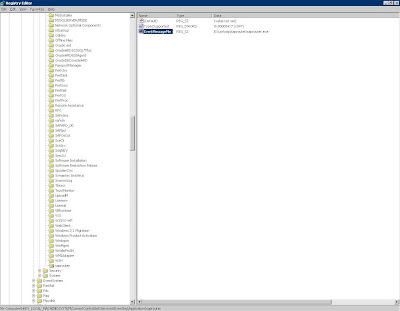
9. Create key "saprouter" under
HKEY_LOCAL_MACHINE → SYSTEM → CurrentControlSet → Services → Event Log → Application
Then this values:
EventMessageFile (REG_SZ): ....\saprouter\saprouter.exe
TypesSupported (REG_DWORD): 0x710. Check if you can find MSVCR71.DLL and MSVCP71.dll in your system32-folder.
11. Download MS Runtime DLL attached to note 684106 (r3dllinst.zip). Unzip and run R3DLLINS.EXE from \NTPATCH - restart if necessary.
12. Uncar SECULIB and copy files from nt-i386 (if 32-bit windows) into \usr\sap\saprouter folder.
Uncar SAPCRYPTOLIB and copy files from \ntintel into \usr\sap\saprouter. You also have to copy files directly from the uncared SAPCRYPTOLIB-folder (files as ticket) into \usr\sap\saprouter.
13. Create environment variables for user:
SECUDIR = E:\usr\sap\saprouter
PATH = E:\usr\sap\saprouter
SNC_LIB = E:\sap\saprouter\sapcrypto.dll
14. Go to service marketplace:
https://websmp201.sap-ag.de/SAPROUTER-SNCADD
Press Apply Now!
You'll receive some data. Save it and copy the Distinguished Name.
Press Continue.
15. Open dos-command at your saprouter-host and type:
sapgenpse get_pse -v -r certreq -p local.pse "
Just press "Enter" twice if you have to enter PIN.
16. Files local.pse and certreq is now created in saprouter-folder.
Open file certreq in notepad and copy the content.
17. Go back to service marketplace (window from nr. 14) and paste the content from certreq there. Press Request Certificate.
You will then receive your certificate.
18. Copy your certificate into notepad at your saprouter-host. Save this notepad-file as srcert in your saprouter-folder.
19. Open dos-command and import the certificate:
sapgenpse import_own_cert -c srcert -p local.pse
20. Create credentials. Open dos-command and type:
sapgenpse seclogin -p local.pse
21. Verify the import of the certificate. Open dos-command and type:
sapgenpse get_my_name -v -n Issuer
Everything should be ok.
22. Create a file called saprouttab in your saprouter-folder and enter thise entries:
KT "p:CN=sapserv2, OU=SAProuter, O=SAP, C=DE" 194.39.131.34 *
KP "p:CN=sapserv2, OU=SAProuter, O=SAP, C=DE"
P
23. Go into registry at your saprouter-host.
HKEY_LOCAL_MACHINE - SYSTEM - ControlSet001 - Services - SAProuter
Modify string ImagePath.
It should look like this:
E:\usr\sap\saprouter\saprouter.exe service -r -R E:\usr\sap\saprouter\saprouttab -S 3299 -K "p:
24. Start saprouter-service
25. Open port 3299, 3200 between SAP and your saprouter.
26. Create RFC in SM59. If you need some help with this let me know.


